Technical Support
Email Addition to Cell Phone
Prior to reaching out to the Admin Team for assistance with computer and IT-related concerns, please follow the checklist provided.
- Open Email app (red icon)
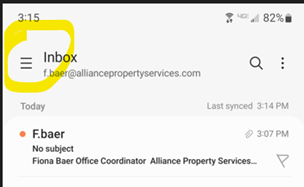
- Click on the 3 lines on the upper left hand side (ex 1)
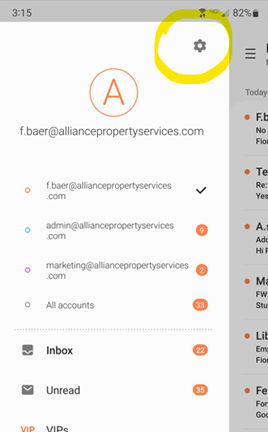
- A side panel will pop out displaying your email addresses
- Click on the gears icon at the top right (ex 2)
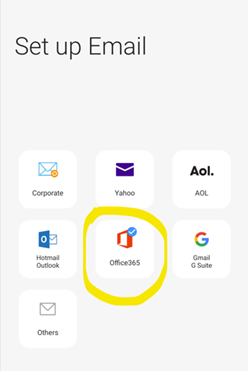
- It will then pop up options for adding emails
- Choose Office365 (ex 4)
- Microsoft login will then pop up
- Type in email address and click next
- Type in the standard password and click sign in
- A pop up will say “Apply security settings?”
- Choose Apply
- Then choose Done
- Then choose Done again
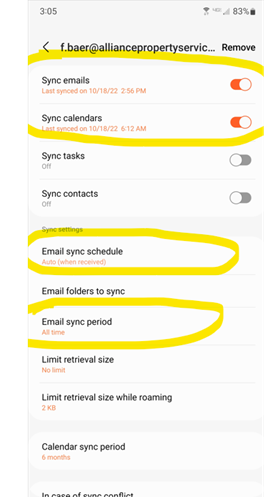
- Now you need to edit the inbox sync
- Click on the 3 lines again in the upper left hand side
- Then choose the gears
- Choose the email
- Scroll down to where it says “Email sync period” and select it
- Then select the choice “All time”
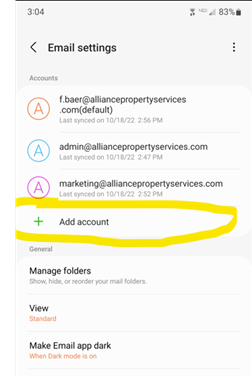
(Make sure that “Email sync schedule” is set to Auto and that “Email sync period” is set to All time) (ex 5) - Under Accounts, click on +Add account (ex 3)