Technical Support
Email Addition / Removal
Prior to reaching out to the Admin Team for assistance with computer and IT-related concerns, please follow the checklist provided.
Adding Emails
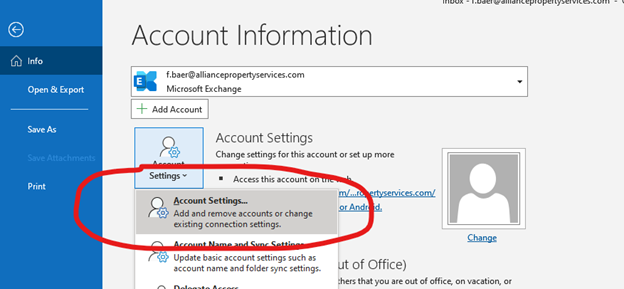
- In Outlook click on File
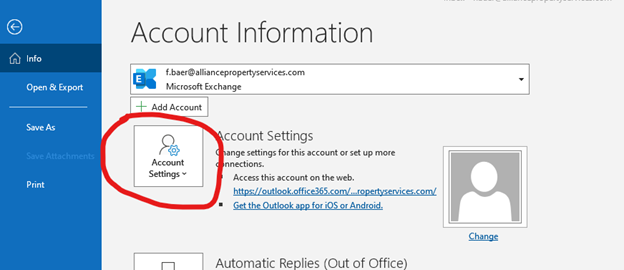
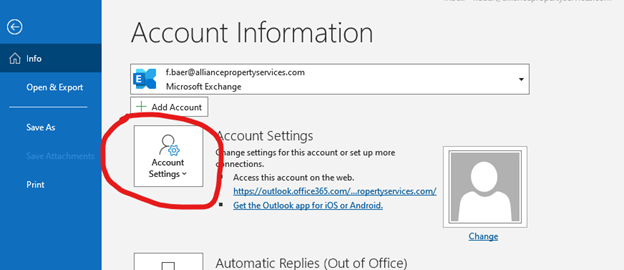
- Click on Account Settings (ex 1)
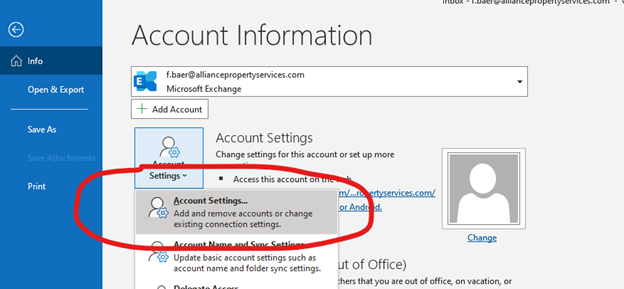
- Click on Account Settings again (ex 2)
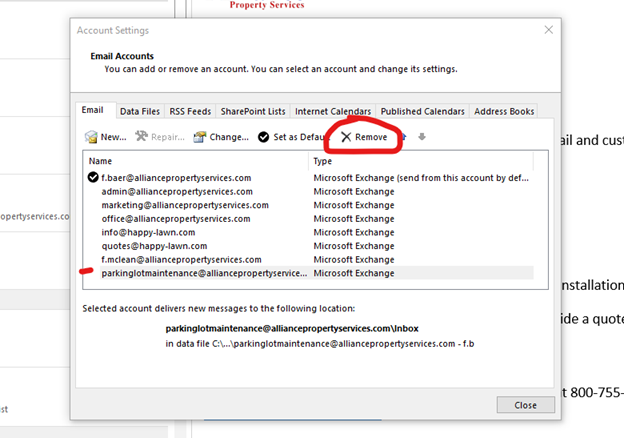
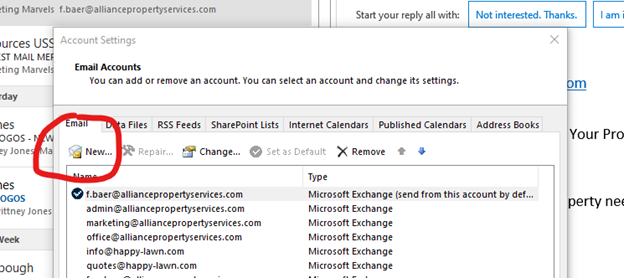
- A pop-up window will appear, click on New (ex 3)
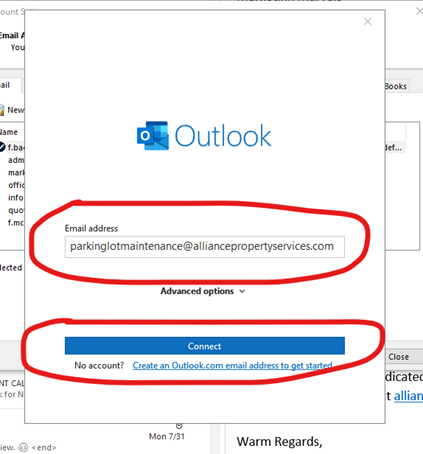
- Type in the email address adding, then click on Connect. (ex 4)
- Enter standard password that was sent in an email with passwords.
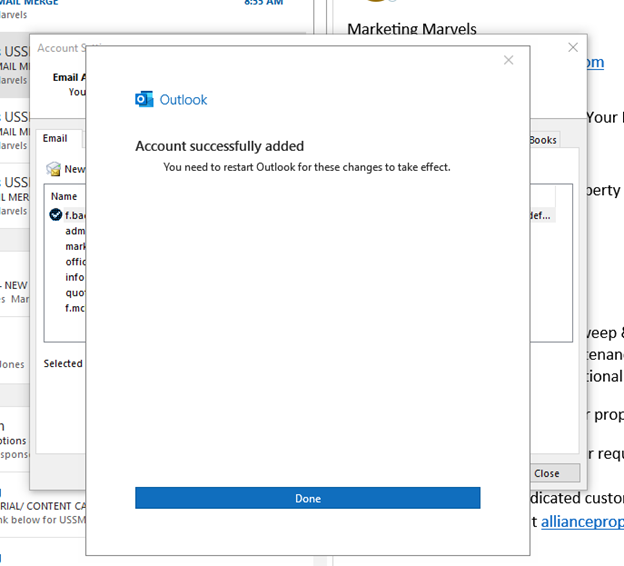
- If correct, you will then see a confirmation. (ex 5)
- Exit out of Outlook
- Re-open Outlook, you should then see your added email address on the left-hand side with other email addresses
Removing Emails
- In Outlook click on File
- Click on Account Settings (ex 1)
- Click on Account Settings again (ex 2)
- Click on the email you want to remove to highlight it, and then click Remove (ex 3)
- A pop-up will appear asking if you want to remove the content, and click on Yes.
- The email address will then be removed from your list of emails. If needed, close and re-open outlook.