Technical Support
Email Signature
Prior to reaching out to the Admin Team for assistance with computer and IT-related concerns, please follow the checklist provided.
- Open Outlook
- Click on “New Email”
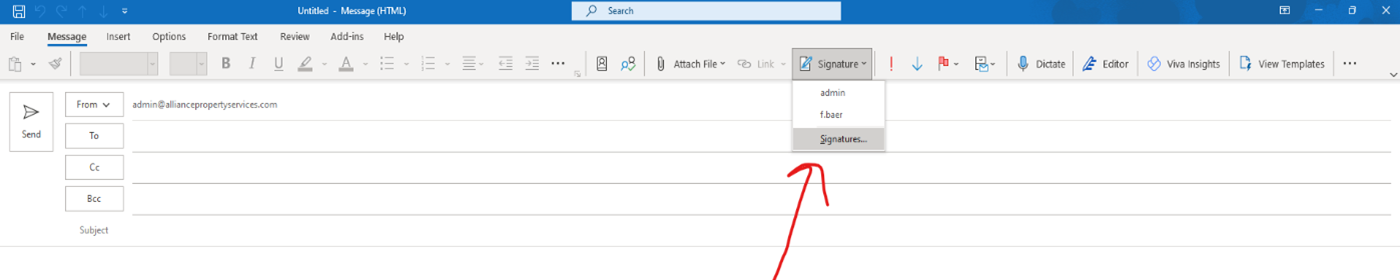
- At the top of the menu bar click on “Signature” (if you do not it, you need to maximize your screen) (ex 1)
- It will then drop down a menu, click on “Signatures” (ex 1)
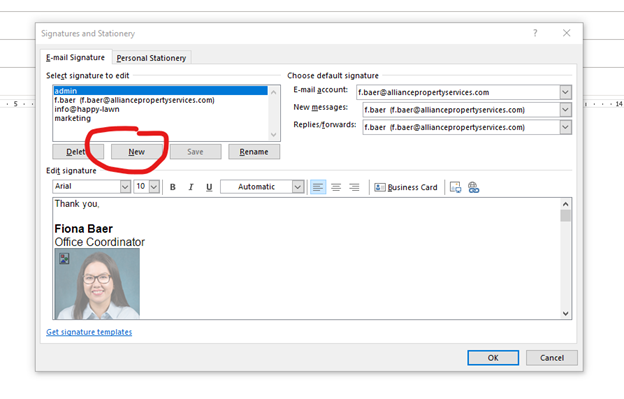
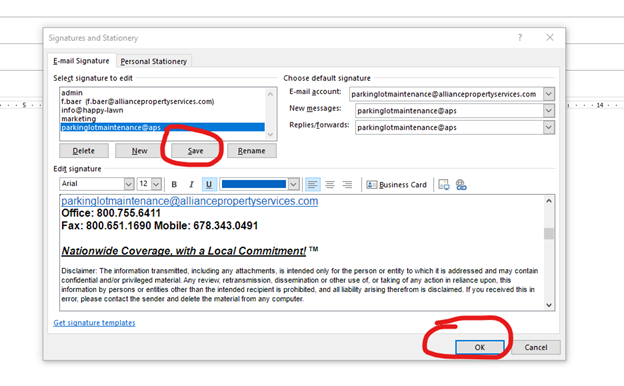
- A pop-up window will appear
- Click on New (ex 2)
- Type the name of the email address, and click Ok
- Click on another email address in the “Select signature to edit” box, and highlight the signature below and copy the signature (you need to copy this other signature to have one for the new signature)
- Click back on the new signature you created, and paste the signature in the empty box below.
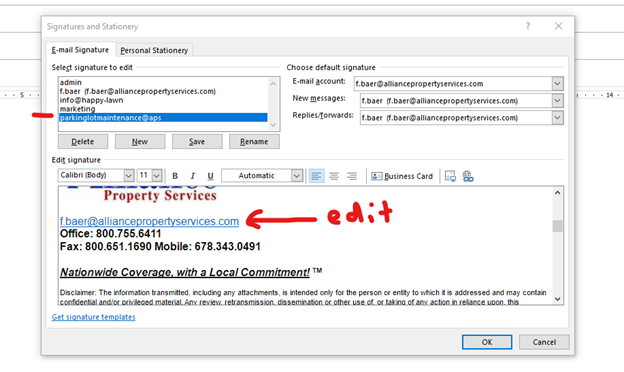
- Scroll down in the signature and edit the email address so that it reflects the new email address for that signature. (ex 3)
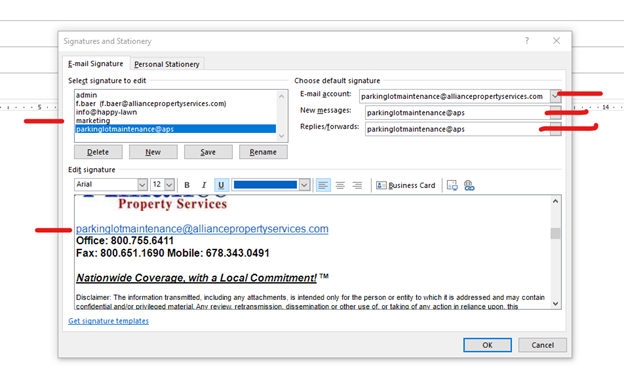
- Ensure all the signature names are the same on the right-hand side (ex 4)
- Ensure all other information is correct for that email/signature (title, mobile number)
- Once done, click on “Save”. Then click Ok (if you do not click save first, the information you put in will not be saved)
- Close the message window
- Click on “New Email”
- Your new signature should automatically appear
- If the new signature does not appear, then go back through the steps